
How to Export Chrome Bookmarks in 2026: Backup, Restore & Transfer Guide
Moving to a new laptop? Reinstalling Windows? Or simply worried about losing years of saved websites? You can export Chrome bookmarks into one HTML file and keep a copy wherever you like. You don’t need an extension, and exporting won’t remove anything from Chrome.
This guide walks you through backing up bookmarks on Windows, Mac, and Linux; importing them later; transferring them to another computer; and handling the most common problems. It also explains what to do on Android or iPhone, where Chrome doesn’t offer the same desktop export button.
On desktop, Chrome exports bookmarks as an HTML file through Bookmark Manager. You can import that file into Chrome on another computer. Exporting copies bookmarks; it does not delete them. The HTML file is not a full Chrome profile backup and does not contain saved passwords or browsing history.
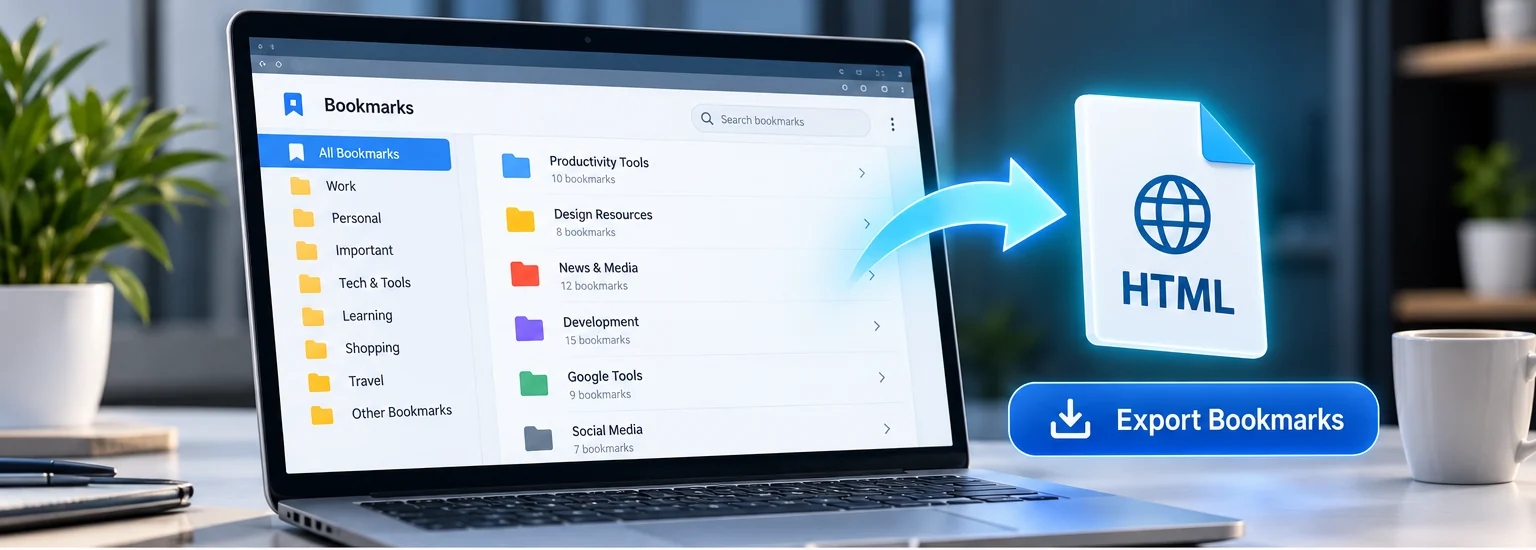
How to export bookmarks from Chrome (Windows, Mac, or Linux)
Yes. On a desktop computer, open chrome://bookmarks, choose the Bookmark Manager menu, and select Export bookmarks. Chrome saves an HTML file containing the bookmarks in that profile.
The fastest way is through Chrome’s built-in Bookmark Manager. The process is essentially the same on Windows, macOS, and Linux, although the buttons can look a little different as Chrome changes its interface.
- Open the correct Chrome profile. If you have a personal account and a work account, check the profile icon in the top-right corner first. Each profile can have different bookmarks.
- Open Bookmark Manager. Select Chrome’s three-dot menu (⋮), choose Bookmarks and lists, and then Bookmark manager. You can also type
chrome://bookmarksin the address bar and press Enter. - Find the Bookmark Manager menu. Look for a second three-dot menu inside the Bookmark Manager page. This is different from Chrome’s main menu.
- Select “Export bookmarks.” Chrome opens a save dialog.
- Save the HTML file. Choose an easy-to-find folder and a descriptive filename, such as
chrome-bookmarks-backup-2026-10-31.html, then select Save.
That’s it. Your existing bookmarks stay in Chrome. The file is a separate copy you can import on another computer or store as a backup. Google documents the same workflow in its official Chrome Help guide.
Chrome bookmarks keyboard shortcuts
| Device | Open Bookmark Manager |
|---|---|
| Windows / Linux | Ctrl + Shift + O |
| Mac | Command + Option + B |
| Any desktop OS | Type chrome://bookmarks in Chrome |
Tip: If a shortcut doesn’t work, use chrome://bookmarks. It takes you directly to the right screen without hunting through menus.
How to back up Chrome bookmarks without losing them
Export an HTML file, keep a dated copy on a trusted external drive or cloud account, and check that your saved links are present. Make a fresh export after major bookmark changes because the file does not update automatically.
Exporting and backing up are related, but not quite the same. Exporting creates the HTML file. Backing up means keeping that file somewhere safe so you can recover it if your laptop breaks, is stolen, or needs to be reset.
After exporting, follow these practical precautions:
- Keep two copies. For example, one on an external USB drive and one in a cloud folder you control.
- Put the date in the filename. It makes older and newer exports easy to distinguish.
- Open the file to confirm it exists. You should see a document containing your saved links. Don’t edit or resave it in a word processor.
- Protect sensitive links. A bookmarks file can reveal private portals, company tools, or internal website addresses. Avoid posting it publicly.
- Refresh your backup periodically. The exported file is a snapshot: bookmarks added afterward won’t magically appear in that old file.
What does Chrome’s exported HTML file include?
It includes saved bookmark titles and URLs, typically grouped in their bookmark folders. It does not back up everything in your browser: your saved passwords, cookies, browsing history, extensions, and currently open tabs are not included as part of the bookmarks export.
If you also need passwords, handle them separately through Google Password Manager or the password manager you use. Never email an unencrypted password export to yourself.
How to import or restore Chrome bookmarks from an HTML file
In Chrome, choose Bookmarks and lists → Import bookmarks and settings, select the HTML-bookmarks option, and import your saved file. Then check Bookmark Manager for the imported folders.
Restoring bookmarks is the reverse process. You’ll need the HTML file that was exported earlier.
- Open Chrome on the computer where you want the bookmarks.
- Click the ⋮ menu and go to Bookmarks and lists → Import bookmarks and settings.
- Choose the option to import bookmarks from an HTML file, if prompted.
- Click Choose file, select your saved
.htmlbackup, and confirm. - Open Bookmark Manager to check where the imported bookmarks landed.
If the browser already had bookmarks, Chrome may put the imported ones into an Imported or Other bookmarks folder rather than mixing them into your bookmarks bar. This is normal; you can reorganize them afterward. See Google’s import instructions if the menu labels on your version differ.
How to transfer Chrome bookmarks to another computer
Export bookmarks as an HTML file on the old computer, securely transfer the file, and import it into Chrome on the new computer. Alternatively, bookmarks stored in your Google Account can become available when you use that account in Chrome.
When you buy a new laptop, you have two practical options. The HTML-file method gives you a backup you can keep, while signing into Chrome can make eligible bookmarks available across your devices.
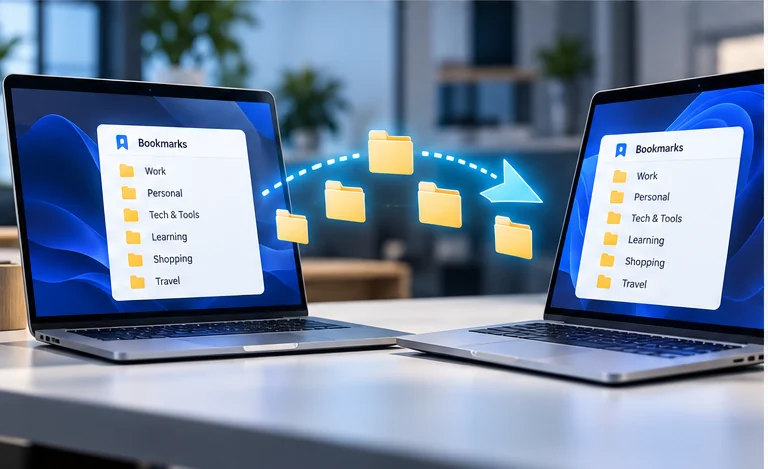
Method 1: Transfer bookmarks using an HTML file
- On the old computer, export your bookmarks using the steps above.
- Copy the HTML file to a USB drive, a trusted cloud folder, or another secure transfer method.
- On the new computer, open Chrome and import the HTML file.
- Check a few important bookmark folders and links before removing anything from your old computer.
This is the best choice when moving between different Google Accounts, keeping an offline backup, or migrating bookmarks only.
Method 2: Use your Google Account
If your bookmarks are saved to your Google Account, signing into Chrome with the same account on another device can make them available there. Check Chrome → Settings → You and Google to review the account and sync-related settings. A bookmark saved only on a particular device or profile may not appear automatically on the other device.
For account-based access, see Google’s guide to bookmarks across devices. Even when you use account sync, keeping an occasional HTML backup offers a useful independent copy.
Can you export Chrome bookmarks on Android or iPhone?
Chrome on Android and iPhone does not offer the desktop HTML-export command. If your mobile bookmarks are available in the same Google Account on desktop Chrome, verify they appear there and export from the computer.
Chrome’s Android and iPhone apps don’t provide the same built-in Export bookmarks to HTML option available on desktop Chrome. You can still use a computer as a bridge:
- Make sure the bookmarks you need on your phone are saved to the Google Account you intend to use.
- Sign into Chrome on a desktop computer with that same Google Account.
- Check that the phone bookmarks are visible in the computer’s Bookmark Manager, often under a mobile-bookmarks folder.
- Export the bookmarks from the desktop browser to an HTML file.
Important: Simply signing in is not proof that all bookmarks were transferred. Verify that the actual links appear on the computer before exporting them.
Chrome bookmarks export or import not working? Try these fixes
The export command is in the Bookmark Manager’s own three-dot menu, not Chrome’s main three-dot menu. Open chrome://bookmarks on a desktop computer to find it.
“I can’t find the Export bookmarks option.”
You may be opening Chrome’s main three-dot menu rather than the menu inside Bookmark Manager. Navigate directly to chrome://bookmarks and look for the page’s own menu.
“My exported bookmarks file is missing.”
Try the folder you selected in the save dialog, then search your computer for bookmarks or *.html. If you cannot find it, export again and choose a folder you can easily recognize, such as Documents.
“Only some of my bookmarks were exported.”
First confirm you exported from the right Chrome profile. If you use several profiles or Google Accounts, repeat the process for each profile that contains bookmarks you need. Check that account-saved and device-only bookmarks are visible before you export.
“I imported bookmarks but can’t see them.”
Open Bookmark Manager and look in Imported, Other bookmarks, and the bookmarks bar. Also check whether the bookmarks were imported into a different Chrome profile.
“Importing created duplicate bookmarks.”
Importing a file is not the same as intelligently merging a bookmark library. Repeated imports can create duplicates. Keep your original HTML backup and review what you already have before importing again.
“Can I export Chrome bookmarks and passwords together?”
No. Chrome’s bookmark export is an HTML file containing bookmarks, not passwords. Passwords need a separate process. Treat any password export as highly sensitive and remove unnecessary plaintext copies when finished.
Frequently asked questions
Can I export bookmarks from Chrome without signing in?
Yes. Desktop Chrome can export the bookmarks in the current local browser profile to an HTML file, even if you are not signed into a Google Account.
Does exporting Chrome bookmarks also save passwords and history?
No. The bookmarks HTML export saves bookmark links and their folder structure, not your passwords, cookies, browsing history, extensions, or open tabs.
Can I import Chrome bookmarks into another browser?
Many desktop browsers can import bookmarks from an HTML file. Use the destination browser’s bookmark import feature and select the file you exported from Chrome.
How do I export all my bookmarks from Google Chrome?
Open Bookmark Manager, choose its three-dot menu, then select Export bookmarks. Save the resulting HTML file. Chrome’s built-in export is intended for your bookmark collection, rather than one chosen bookmark folder.
How do I save Chrome bookmarks to a USB drive?
Export bookmarks as an HTML file, connect your USB drive, and copy that file onto the drive. You can also select the drive as your save destination during export.
Will exporting bookmarks delete them from Chrome?
No. Exporting makes a copy; it doesn’t remove your existing bookmarks from the browser.
Can I move Chrome bookmarks from Windows to Mac?
Yes. Export the HTML file on Windows and import it using Chrome on your Mac. The HTML format is portable between operating systems.
How do I back up Chrome bookmarks without a Google Account?
Use the manual HTML export method. It works in desktop Chrome without relying on account synchronization.
Is the HTML bookmark file safe to share?
It’s generally readable by anyone who receives it, so avoid sharing it openly. It may reveal private sites or internal work links even though it doesn’t contain your Chrome passwords.
Sources and accuracy notes
This guide follows Google Chrome Help: import and export bookmarks and Google Chrome Help: access bookmarks across devices. Chrome menus can change between versions, so check the current interface if a label looks different.
Final checklist: make sure your Chrome bookmarks are protected
- Export from the correct Chrome profile.
- Save the HTML file with a descriptive name and date.
- Keep an extra copy away from your main device.
- Import it on your new computer and verify important folders.
- Repeat the backup whenever your bookmarks change significantly.
Whether you’re preparing for a computer upgrade or simply want peace of mind, a few minutes spent exporting and checking your Chrome bookmarks can prevent a lot of frustration later. Bookmark this guide so you know exactly where to start next time.
About Pasand Tech: We share straightforward technology guides and help businesses build better digital experiences. Explore our web development services or browse the Pasand Tech blog.